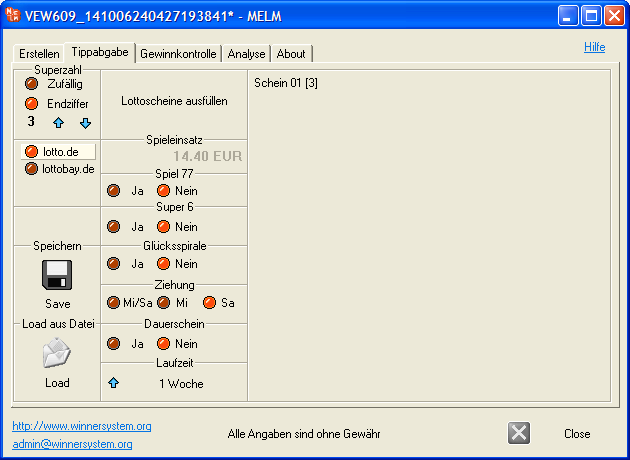
Figure: Transfer system lines to provider tickets and place them into the cart (screenshot in German).
1) With MELM you can submit your lines conveniently and—most importantly—accurately via lotto.de (the joint platform of the German state lottery operators; secure with guaranteed payouts) as well as via the licensed retailer lottobay.de (forwards to lotto.de). You only need MELM on your local PC with internet access; the rest is handled on the providers’ websites.
– Choose the provider by clicking the respective button on the left in MELM; their site opens in your default browser.
– Choose duration and add-ons like Spiel 77, Super 6, or Glücksspirale.
– Click “Fill tickets”. Buttons “Ticket XX [Y]” are auto‑filled with the current system’s numbers and activated based on the number of lines.
– Clicking a ticket (e.g., “Ticket 01 [0]”) places it immediately into the retailer’s cart. Submit multiple tickets in sequence as needed.
Figure: Transfer system lines to provider tickets and place them into the cart (screenshot in German).
2) You can choose the provider and also set the Superzahl (last digit of the ticket number) manually or randomly (top left). This also applies to loaded systems. You can assign a Superzahl to a compact system (without explicit ticket numbers) either uniformly for all lines or randomly per standard ticket (12 fields).
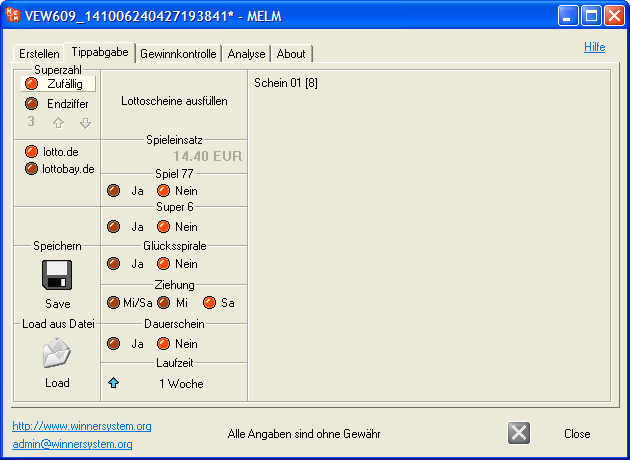
Figure: Manual or random selection of the Superzahl for tickets (screenshot in German).
3) Systems created in MELM can be saved. Click “Save” (enabled after filling tickets) to write a text file. The Superzahl is stored as part of the ticket number. If you choose end digit 0, MELM also creates a companion text file with the same filename without ticket numbers. For convenience, use the *.iiv extension.
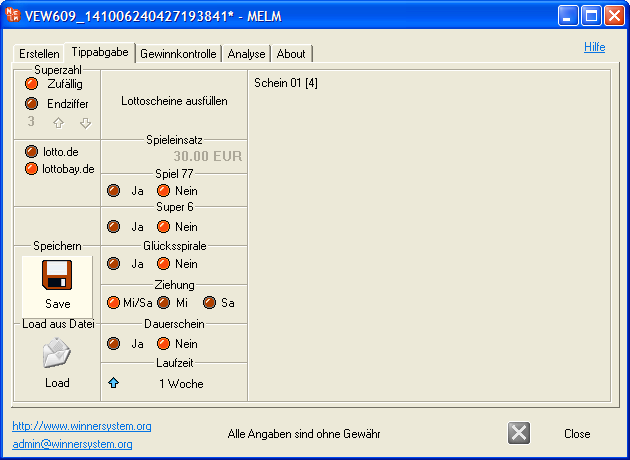
Figure: Saving the current system to a text file (screenshot in German).
4) The “Load” button imports systems. File format: each number is two digits (e.g., 09), numbers ≥10 unchanged, followed by a 7‑digit ticket number. Separator is a single space. Each line totals 27 characters and represents one game line (DOS CRLF). Example:
03 07 08 09 13 25 2605023
07 08 09 13 14 30 2605023
08 09 13 14 25 38 2605023
09 13 14 25 30 39 2605023
03 13 14 25 30 38 2605023
07 14 25 30 38 39 2605023
03 08 25 30 38 39 2605023
03 07 09 30 38 39 2605023
03 07 08 13 38 39 2605023
03 07 08 09 14 39 2605023
Since v7.15: most simple text files can be imported; use “#” for comments.
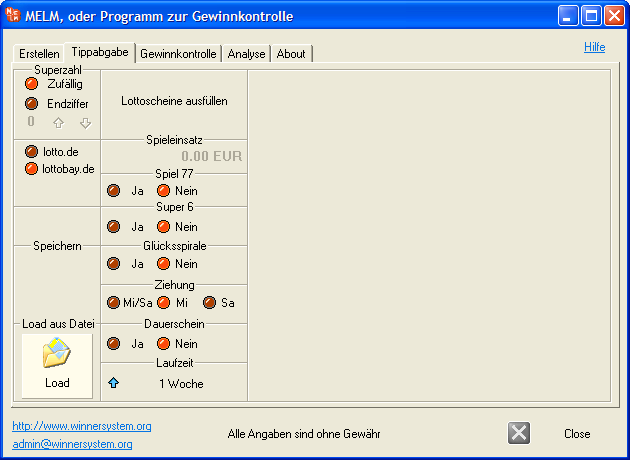
Figure: Loading a system from a text file using “Load” (screenshot in German).
5) Some syndicates found it cumbersome to reload larger systems each time.
New in v7.29: save your ticket/system as autoload-melm.txt in the program folder (same directory as melm.cfg, e.g., Desktop). On startup, MELM auto‑loads this file (delete it when no longer needed). The title bar shows the loaded system; clicking “Swap” displays its system numbers. You can organize multiple subfolders with different systems. (Copying registration data is no longer required from v8.00.)
New in v8.00 (upcoming): Autoload opens in the correct tab; the system from autoload-melm.txt is parsed and mapped to buttons automatically.
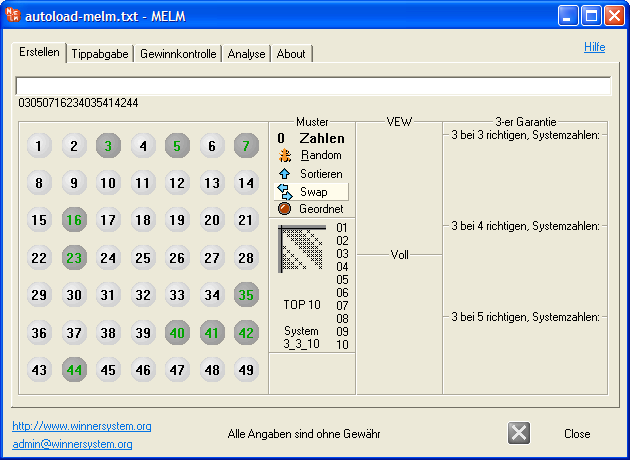
Figure: Autoloaded system indicated in the program UI (screenshot in German).